Map-Making Q&A

How to make a map. Official Handbook, Guides, Tutorials and more...

Moderator: Cartographers

Forum rules
Please read the Community Guidelines before posting.
User avatar
DiM
Posts: 10415
Joined: Wed Feb 14, 2007 6:20 pm
Gender: Male
Location: making maps for scooby snacks

Post by DiM »

FirefoxRocks wrote:Yes, that would be extremely helpful if I knew how to get the selection to be selected after I release the mouse button.

I already tried using that, but it won't stay selected.


what do you mean it doesn't stay selected?

it's the "ellipse select tool"
so while you have the "ellipse select tool" on your mouse pointer.

hold Shift and then click the LMB somewhere on the canvas and drag it around to create a circle. then let go and the circle should stay selected.

other than this i don't know what to say.

“In the beginning God said, the four-dimensional divergence of an antisymmetric, second rank tensor equals zero, and there was light, and it was good. And on the seventh day he rested.”- Michio Kaku
User avatar
UnderSeage
Posts: 173
Joined: Mon Nov 20, 2006 12:14 am
Location: Florida

Hi

Post by UnderSeage »

Hi there guys! Im thinking of making a map very soon. It will be my first one. Does it have to be a country oriented map? My idea is a prison with cells and hallways and gas chambers etc. lol Is this a good idea or should I keep thinking? Let me know ;)
Image
User avatar
gimil
Posts: 8599
Joined: Sat Mar 03, 2007 12:42 pm
Gender: Male
Location: United Kingdom (Scotland)

Re: Hi

Post by gimil »

UnderSeage wrote:Hi there guys! Im thinking of making a map very soon. It will be my first one. Does it have to be a country oriented map? My idea is a prison with cells and hallways and gas chambers etc. lol Is this a good idea or should I keep thinking? Let me know ;)


unfortunatly buddt there is already a prison map in production.

http://www.conquerclub.com/forum/viewto ... 14&start=0

but to answer your 1st question you can make a map themed on anything as long as the current XML can accomodate what your idea is.
What do you know about map making, bitch?
natty_dread wrote:I was wrong
Top Score:2403
User avatar
UnderSeage
Posts: 173
Joined: Mon Nov 20, 2006 12:14 am
Location: Florida

thanks

Post by UnderSeage »

sweet thanks[/quote]
Image
User avatar
Tisha
Posts: 1065
Joined: Sat Dec 23, 2006 12:41 am

Post by Tisha »

i get that the territory coordinates is a list of the X and Y coordinates (in pixels) where the armies should be printed on the small and large maps, but how do i find them with Photoshop? or is there something easier to use?
User avatar
gimil
Posts: 8599
Joined: Sat Mar 03, 2007 12:42 pm
Gender: Male
Location: United Kingdom (Scotland)

Post by gimil »

Tisha wrote:i get that the territory coordinates is a list of the X and Y coordinates (in pixels) where the armies should be printed on the small and large maps, but how do i find them with Photoshop? or is there something easier to use?


If your looking to the acctually coordinates, i dont have a clue where to find tem in photoshop, but in the map tools thread there is a downlaod that lets you generate teh codes by clicking on the screen.

http://www.conquerclub.com/forum/viewtopic.php?t=1085
What do you know about map making, bitch?
natty_dread wrote:I was wrong
Top Score:2403
User avatar
Gnome
Posts: 388
Joined: Wed Jul 18, 2007 4:15 am
Location: Belgium

Post by Gnome »

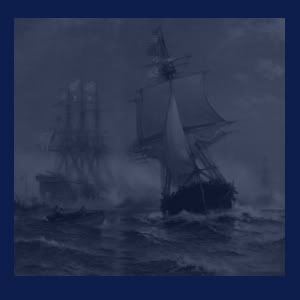
Tutorial:
hey gnome, how do u get the pictures into the background anyways???

This tutorial is for Photoshop (I made it in Adobe photoshop cs2)

1) make a new layer (I made it 300x300 for the example)

2)choose a background colour...I took (0d1d4b)
Image

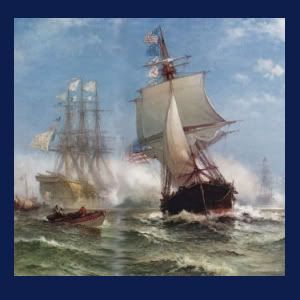
3) take a picture you want to add in the background (Im going for a boat in the see) Just put the picture on top of everything
Image

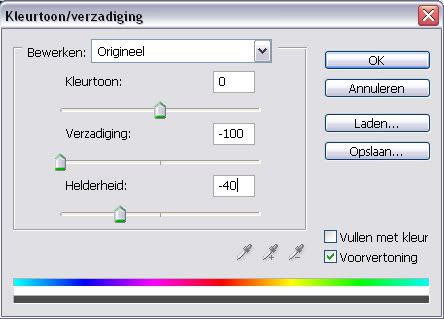
4)now go in the picture<adjust menu (I think it's called that way)
Image

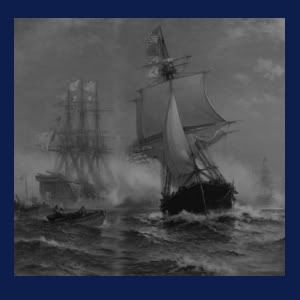
5)this is what it should look like now
Image

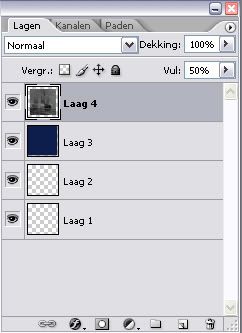
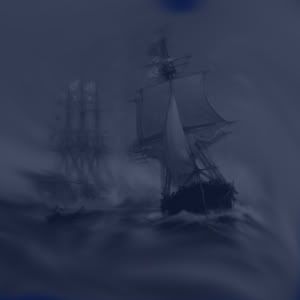
6)now put the layer on 50%
Image

7)should look like this
Image

8)now take this tool (don't know name in English)

Image

9)take it on 87px or something that suites you and start to move it around...
this is my final result on it but it works on all kind of stuf...
Image
User avatar
Coleman
Posts: 5402
Joined: Tue Jan 02, 2007 10:36 pm
Gender: Male
Location: Midwest

Post by Coleman »

Thanks for that Gnome, I may need to do something like that for the Bracket Map I'm working on.
Warning: You may be reading a really old topic.
bryguy
Posts: 4381
Joined: Tue Aug 07, 2007 8:50 am
Location: Lost in a Jigsaw

Post by bryguy »

oh your using photoshop, rats, im using inkscape >_<
User avatar
Wisse
Posts: 4448
Joined: Fri Oct 13, 2006 2:59 pm
Location: The netherlands, gelderland, epe

Post by Wisse »

gnome the "natte vinger" tool is called smudge tool in english
Image Image
User avatar
Gnome
Posts: 388
Joined: Wed Jul 18, 2007 4:15 am
Location: Belgium

Post by Gnome »

Wisse wrote:gnome the "natte vinger" tool is called smudge tool in english


thx :wink: I had no time to look it up...(to lazy :roll: )
bryguy
Posts: 4381
Joined: Tue Aug 07, 2007 8:50 am
Location: Lost in a Jigsaw

Post by bryguy »

lol
bryguy
Posts: 4381
Joined: Tue Aug 07, 2007 8:50 am
Location: Lost in a Jigsaw

Post by bryguy »

yea i most likely will have to switch to adobe, cause i upgraded my mac from panther to leopard, and in the upgrade i lost X11, which is needed for inkscape to work
User avatar
lt_oddball
Posts: 364
Joined: Mon Mar 05, 2007 11:17 am
Location: Fortress Europe

Inkscape how to save from *.svg to *.jpg

Post by lt_oddball »

I really having trouble with something that should be so simple.

After spent many hours on a map in inkscape that saves under *.svg, I want to save a copy in .jpg format for displaying purposes.

But the formats to save ("export") it under is everything except jpg or any other familiar reduced format.
The only thing I'd recognize is *.bitmap ..but doing that means the program freezes/crashes.

Opening the *.svg with Gimp makes the self fabricated patterns disappear, so that is no use either.

The only thing that works but with flaws is making a screenshot with SnagIt.
But it shouldn't be going like that.

So who can tell me more about Inkscape in this (websearches give me no answers). :(
Barbarus hic ego sum, quia non intellegor ulli.
User avatar
DiM
Posts: 10415
Joined: Wed Feb 14, 2007 6:20 pm
Gender: Male
Location: making maps for scooby snacks

Re: Inkscape how to save from *.svg to *.jpg

Post by DiM »

lt_oddball wrote:I really having trouble with something that should be so simple.

After spent many hours on a map in inkscape that saves under *.svg, I want to save a copy in .jpg format for displaying purposes.

But the formats to save ("export") it under is everything except jpg or any other familiar reduced format.
The only thing I'd recognize is *.bitmap ..but doing that means the program freezes/crashes.

Opening the *.svg with Gimp makes the self fabricated patterns disappear, so that is no use either.

The only thing that works but with flaws is making a screenshot with SnagIt.
But it shouldn't be going like that.

So who can tell me more about Inkscape in this (websearches give me no answers). :(


i used inkscape a long long time a go and from what i remember it can save png. so do that save as png instead of jpg.
“In the beginning God said, the four-dimensional divergence of an antisymmetric, second rank tensor equals zero, and there was light, and it was good. And on the seventh day he rested.”- Michio Kaku
User avatar
MasterKujacnbsh
Posts: 64
Joined: Fri Nov 02, 2007 6:47 pm
Location: In a land of magical unicorns and rapists who rip your eyes out and then like eat them and stuff....

Post by MasterKujacnbsh »

WidowMakers wrote:Here is a PSD file that shows one way to make mountains. It is basically a layered approach. Each layer is made by applying and layering small amounts of color to a layer (pick a textured brush with 25%-40% opacity and flow) then the layer has a bevel and texture applied to it via Blending options.

You can open the PSD file and turn off the layer styles. That will show you what each layer looks like and how to better make the mountains.

Have fun

http://www.fileden.com/files/2007/6/15/ ... ntains.psd
Image


I wanted to see what this was, but I cant see this because i dont have photoshop. Could you post the layers on the thread, or are there too many? If you cant, then w/e. Ill just drop it.
User avatar
ItsaMeGregorio
Posts: 17
Joined: Wed May 16, 2007 3:58 pm
Gender: Male

Map Uploading

Post by ItsaMeGregorio »

how do i load a GIMP file map i just made onto a new thread?
User avatar
Mr_Adams
Posts: 1987
Joined: Fri Jul 13, 2007 8:33 pm
Gender: Male

Post by Mr_Adams »

I just downoaded this "Picasa" program, and it's WORTHLESS!!! I can't figure out how to do anything, but select a picture. how do I get to a working page were I can edit my pic?

Edit: Forget Picasa, I'm going to try Inkscape
Last edited by Mr_Adams on Wed Nov 28, 2007 9:53 pm, edited 1 time in total.
Image
User avatar
Herakilla
Posts: 4283
Joined: Fri Jun 09, 2006 8:33 pm
Location: Wandering the world, spreading Conquerism

Re: Map Uploading

Post by Herakilla »

babinecz wrote:how do i load a GIMP file map i just made onto a new thread?


first you have to upload it to a site like photobucket

then right click it (ctrl or apple click for macs?) and click on copy image's url

then use

Code: Select all

[img](insert the url here)[/img]


and voila!

just make sure it doesnt end with .htm or .html as those arent images....
Come join us in Live Chat!
User avatar
Mr_Adams
Posts: 1987
Joined: Fri Jul 13, 2007 8:33 pm
Gender: Male

Post by Mr_Adams »

how do you paste into Inkscape?
Image
User avatar
Bad Speler
Posts: 1027
Joined: Fri Jun 02, 2006 8:16 pm
Gender: Male
Location: Ottawa
Contact:

Post by Bad Speler »

Mr_Adams wrote:how do you paste into Inkscape?

If you're talking about pasting something in from outside the documet, you must first save it as an image file (png, bmp, jpg, etc.) then import it into inkscape (Ctrl + I). IF you're talking about pasting something copied inside inkscape, it's the standard Ctrl + V.
Highest Score: 2532
Highest Position: 69 (a long time ago)
User avatar
Mr_Adams
Posts: 1987
Joined: Fri Jul 13, 2007 8:33 pm
Gender: Male

Post by Mr_Adams »

Bad Speler wrote:
Mr_Adams wrote:how do you paste into Inkscape?

If you're talking about pasting something in from outside the documet, you must first save it as an image file (png, bmp, jpg, etc.) then import it into inkscape (Ctrl + I). IF you're talking about pasting something copied inside inkscape, it's the standard Ctrl + V.


Thank you sir. Oh, and your name reminds me of a T-shirt I saw once. It said "Bad spellers of the world UNTIE!!!"

Ok, next question. Is there a filler tool on this program? Something like MSpaint's "paint can" tool
Image
User avatar
Mr_Adams
Posts: 1987
Joined: Fri Jul 13, 2007 8:33 pm
Gender: Male

Post by Mr_Adams »

Also, can make an old picture a new layer? Like loading a picture, and putting it in as an individual layer.

And is there a texturing tool? something to make a speckled that area to look like sand?
Image
User avatar
Mr_Adams
Posts: 1987
Joined: Fri Jul 13, 2007 8:33 pm
Gender: Male

Post by Mr_Adams »

I still can't find a filler tool, and the customer support was no help at all.
Image
User avatar
Mr_Adams
Posts: 1987
Joined: Fri Jul 13, 2007 8:33 pm
Gender: Male

Post by Mr_Adams »

Is there a way to crop out an unwanted background and trasfer only the wanted area to another layer/ file/ program in paint/ Inkscape/ Image forge.
Image
Post Reply

Return to “Tools & Guides”