the purpose of Map Making TTT is to have a place where new and old map makers share their knowledge and help eachother achieve a higher level of understanding photoshop fireworks or any other image editing software we use. my hope is to gather as many tutorials as possible and constantly update them in the first post, thus allowing everybody to quickly find what they need. also you can share your brushes patters and textures. just upload them on the web and post the link. anybody is free to ask and answer if they follow some simple rules:
rules for asking: 1. please state the name and version of your image editing software. this way you'll make sure you receive a proper advice. 2. please don't bump your question. somebody will answer it.
rules for answering: 1. always quote the question so people will know what the tutorial is about. 2. the tutorial must be in one of these forms: video or text with explanatory images 3. make sure your tutorial is easy to follow even by the noobest of noobs. that means no skipping of steps you assume the readers should know.
general rules: 1. no side talk. posts like "wow" or "great" don't belong here. they just clutter the thread. if you really feel you want to congratulate someone for a nice tutorial then pm him. 2. if you post a collection of brushes textures or patterns please say what software they are for.
edocsil wrote:i am having a problem with my antarctica map im using inkscape but i might be able to use gimp (learning how to). the problem is impasible borders rivers aren't a problem in inkscape its mountains that r tough because u have to import a pic into inkscape and then edit it , so it has a box around ur image i can color that box but it takes a while.
how can i put in impassible borders preferable mountains?
i'm not sure i fully understand your problem but my guess is you have a picture of a mountain and you want to use just the mountain and not the background. here's a tutorial on the magic wand tool. the tutorial is for gimp. i'm not sure if you have the magic wand in inkscape.
Using the Magic Wand
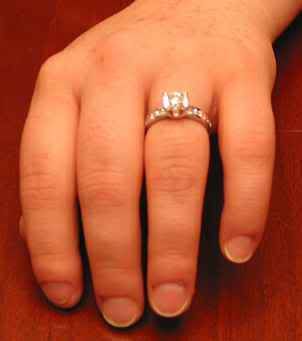
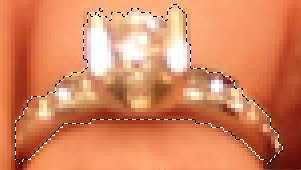
you have this image:
you want to use the ring but not the hand.
zoom into the ring as much as you need but make it so you can see the entire ring and a little bit around it. now select the magic wand tool that looks like this:
set the tolerance at a low value. let's say 2 or 4. using the magic wand, click on the ring. a small part will highlight.
you can select larger areas by clicking and holding down the mouse button and moving your mouse down. this selects a larger area, but sometimes it will select unnecessary parts of the picture. you can press undo(or Ctrl+Z) to undo anything you accidentally selected. you can also hold Ctrl and press unwanted areas to deselect them. once you have a little bit selected, hold the Shift key and do the same thing. Your area will generally increase, but make sure you don't select unwanted areas. keep the Shift key held down and click, click the mouse down and unclick. then select another part on the ring. keep repeating the process until the entire ring is selected. like this:
when you're done, copy the selections you just made by pressing Ctrl+C or going to Edit and Copy Image. now you're going to want to make a new layer. make sure it's on transparent mode. now click the layer you have just made. then go to your image and press Ctrl+V or Edit > Paste. this will paste the ring on the new layer.
your newly created layer will contain nothing but the ring.
do so to any image you need.
Posted: Tue Jun 26, 2007 10:40 am
by DiM
edocsil wrote:.... ok got all that done but now i cant figure out how to change the size of my mountain in gimp idealy if u could tell me how to download the help files for gimp i wouldnt need to bother u
to scale something in gimp right click that something and go to image then scale image. after that set the dimensions you want and click ok.
Ok.. So how would one go about making buildings, such as in the troy map.. I can make buildings, but they seldom(never) look quite as good as those.. And its somewhat hard to make out quite what he's doing in the movie.. Also, the movie's little help to me anyway because I use GIMP.. The only way I could make use of it is to find the GIMP eqivalent to the Photoshop tools.. Which can't be done because its hard to make out... But anyway, I'd like any sort of help in forming buildings like those, or any other varieties of buildings.. Maybe even castle-like structures..
And i'd like to know how the trees are done, its difficult to see what he's using, and is there a way to do that in GIMP?
Thats all right now, thanks.
Posted: Wed Jun 27, 2007 3:42 am
by gimil
for the trees i would sue a small rounded brush ( i used a 5pz and a 3px) place a few dots around of green around then drop shadow it. Thats how its done in photoshop but i dont know if you can do a drop shadow to a layer in GIMP.
Posted: Fri Jun 29, 2007 10:56 am
by DiM
Telvannia wrote:im using gimp 2.2.11 i need to know if anyone has a way to rotate something with out it blurring, for my map i want to rotate buildings to fit the area i want them in, at it is easier to make them as a rectangle then rotate than make it on a angle.
sorry to make this topic but i had no idea who to ask and were to post. it can be deleted after i get my answer.
so here's the question. how can i merge some brushes or layer styles or shapes?
i have let's say basic brushes file and assorted brushes file. and i want all of them in one single file because i'm tired of switching between them all the time.
thanks.
Posted: Thu Jul 19, 2007 9:59 am
by mibi
you keep loading new brushes and make sure to APPEND to the current set. then when you have all the brushes you want you save the brush set as something else.
Posted: Tue Aug 07, 2007 4:13 am
by WidowMakers
Here is a PSD file that shows one way to make mountains. It is basically a layered approach. Each layer is made by applying and layering small amounts of color to a layer (pick a textured brush with 25%-40% opacity and flow) then the layer has a bevel and texture applied to it via Blending options.
You can open the PSD file and turn off the layer styles. That will show you what each layer looks like and how to better make the mountains.
FirefoxRocks wrote:Sorry if this isn't the correct subforum to post this in
On the US Senate map, any idea how to make the area of Democrats/Republicans where there is a semi-circle of sub-divided sections? I have a map drawn on paper that has something similar, but instead it is an entire circle and sections are divided evenly.
I tried using the GIMP to draw circles, but GIMP doesn't even have a shape-drawing tool. I do not have Adobe Photoshop, although my school has Photoshop and I could ask if I could use it for "extra-curricular" projects.
I downloaded Inkscape but I have to spend some time learning that.
Is there a premade image of circles placed inside of circles (not a spiral). It would make the job a whole lot easier. Even if I can make a circle, I need circles inside of circles inside of circles (a total of 5 or 6 circles).
Can anyone tell me how to get started on this?
Use the ellipse select tool, and press Shift while clicking and dragging the mouse. Pressing Shift constrains the selection to be circular. Once you've selected a circular area, you can either stroke the selection with the current brush (Under "Edit->Stroke"), change the selection to a path, or fill the selection. It all depends on what you want to do with the circle.
also check the first post in this thread. you'll find there the help files for GIMP. download them and read.
Posted: Fri Oct 26, 2007 5:12 pm
by Gnome
Tutorial:
hey gnome, how do u get the pictures into the background anyways???
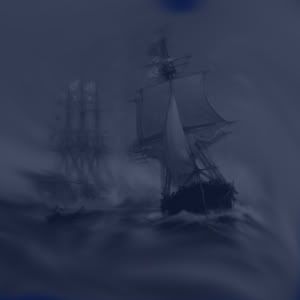
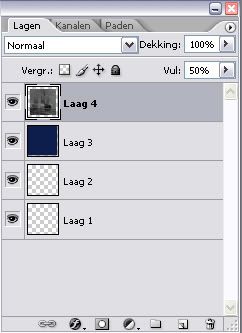
This tutorial is for Photoshop (I made it in Adobe photoshop cs2)
1) make a new layer (I made it 300x300 for the example)
2)choose a background colour...I took (0d1d4b)
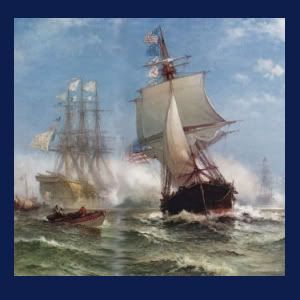
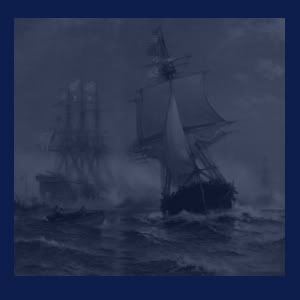
3) take a picture you want to add in the background (Im going for a boat in the see) Just put the picture on top of everything
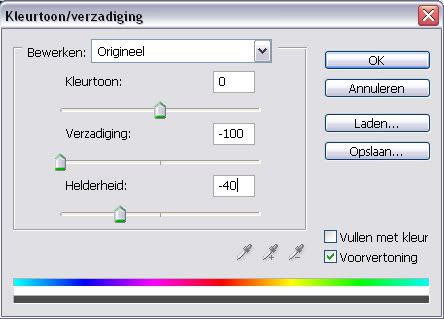
4)now go in the picture<adjust menu (I think it's called that way)
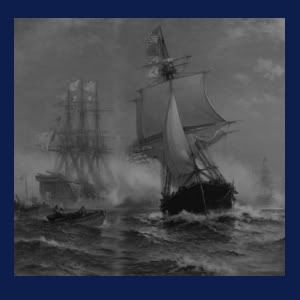
5)this is what it should look like now
6)now put the layer on 50%
7)should look like this
now take this tool (don't know name in English)
9)take it on 87px or something that suites you and start to move it around...
this is my final result on it but it works on all kind of stuf...
Posted: Sat Oct 27, 2007 5:57 am
by Wisse
gnome the "natte vinger" tool is called smudge tool in english
Posted: Fri Dec 14, 2007 3:34 am
by casper
Here's a cool tutorial I found on Wikipedia's Cartography page.
Kaplowitz wrote:Whenever i try to type more than one line in Photoshop, the text overlaps. How do you type more than one line?
Is this what is happening?
You want to type like the top text, but the text overlaps like the bottom.
Adjust your leading in the character panel in photoshop TOP: Proper Leading in Photoshop (Character size 30, leading 36) BOTTOM: Improper Leading in Photoshop (Character size 30, leading 11)
WM
Re: Q&A: Map Making TTT (Tips, Tricks & Tutorials)
Posted: Thu May 08, 2008 8:19 am
by DiM
DiM wrote:never underestimate the power of personalized brushes. create a shape of how you think a tree looks from above. let's say a star shape. now take that brush and set the background and foreground to 2 foliage colours (dark green and yellowy green) then do the following:
scatter> adjust as you please dependng on what you need
colour dynamics> >fore/back 100% > saturation 50% the rest at 0%
and check smoothing.
then go ahead and paint what you need adjusting the brush size according to the height of the viewpoint.
after you paint put on some drop shadow and even bevel if it suits your need. but keep the bevel at a minimum.
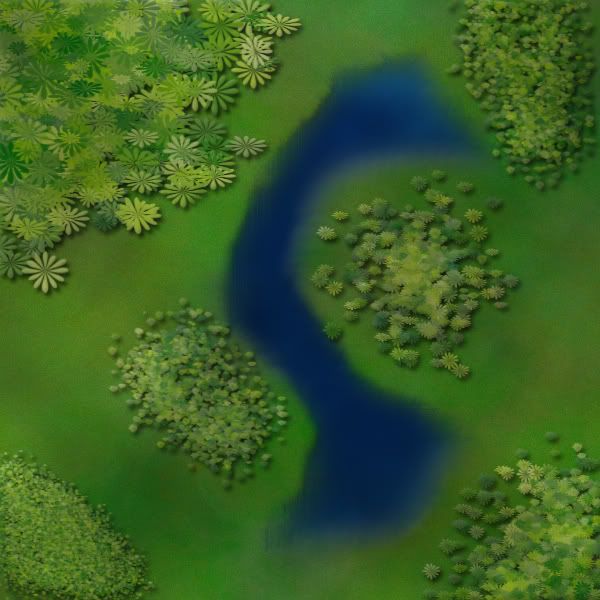
here's a quick example. i didn't bother making a custom shape so i used a flower one. it looks rather bad on large trees but it works for small ones as the details are hard to spot.
Re: Q&A: Map Making TTT (Tips, Tricks & Tutorials)
Posted: Thu May 08, 2008 10:14 am
by bryguy
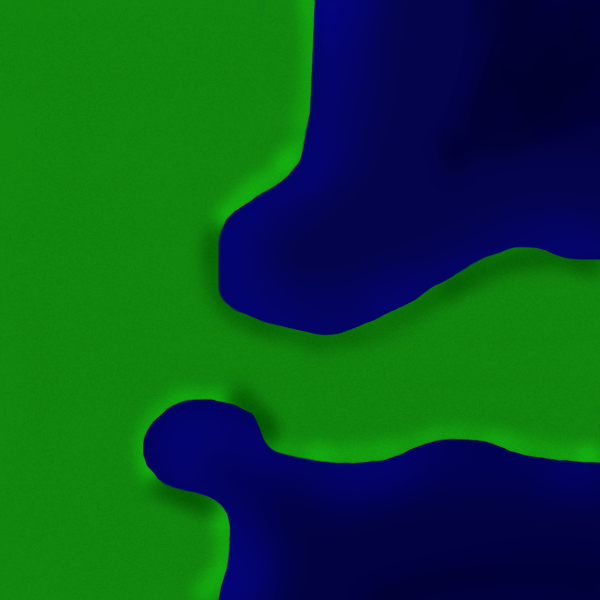
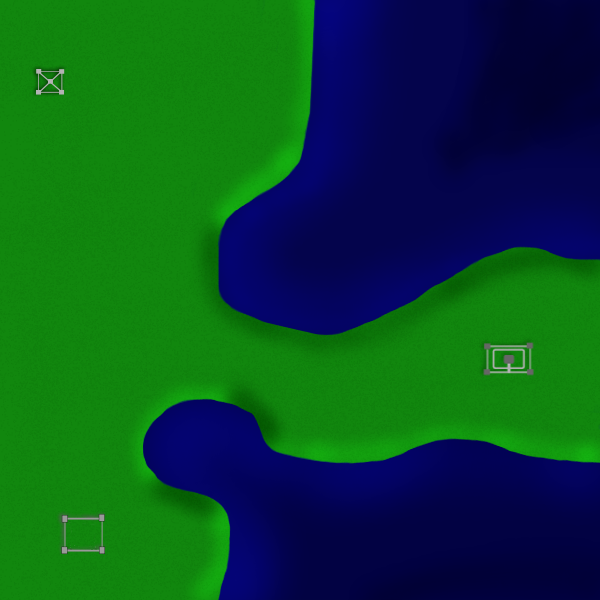
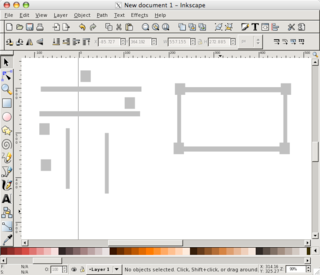
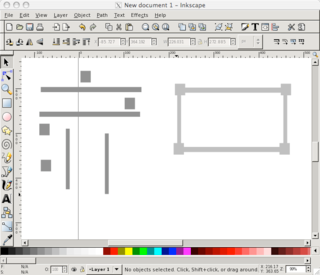
ok i had some free time, and recently i figured out how to make a decent looking landscape with inkscape, ill include a picture i drew up 5 minutes ago at the end.
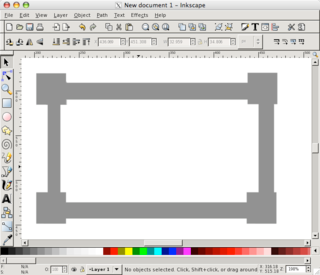
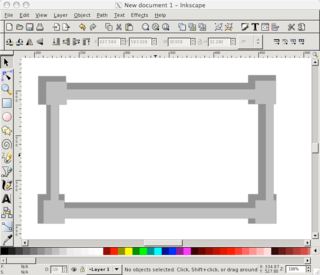
OK first, open X-11 and Inkscape
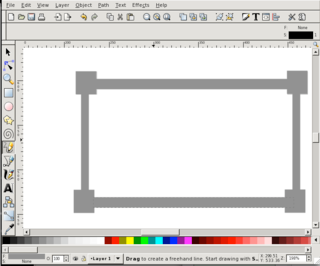
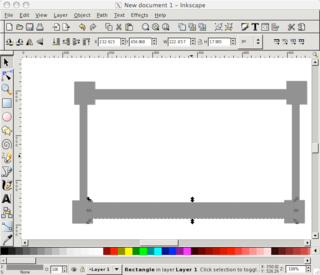
Click the Rectangles and Squares tool
Make a box, it can be any size
Choose a color for the box from the color swatch (the thing at the bottom of inkscape that has all the many colors you can use), for this example im using green.
Now using the Freehand tool, carefully draw some water onto the map, and give it a nice looking blue color. (You dont have to create a new layer for this, since Inkscape uses layers inside of layers)
After thats done, decide where your light source will be, for this example im using the lower right corner
Now draw along the coast of the water, just a little on the land and a little in the water
Now if that side is facing towards your light source, fill it with al lighter color than your square (so if your square is green, make what you just made light green) If it is facing away from your light source, make it darker than your square (dark green if your square is green)
Repeat until u have done that for the entire coastline
Now if you have done that correct it will look crappy so far. But dont worry, we're gonna fix that. Click your lightened and darkened areas, and using the lower selection along the top bar, move it until it is under the water, yet still visible on the land. Do that for all the coast
Now it should look a little better, but not all that good, but dont worry this is the final step Click a lightened or darkened area, and in the upper right corner of inkscape, click the little paintbrush (it will be next to a T)
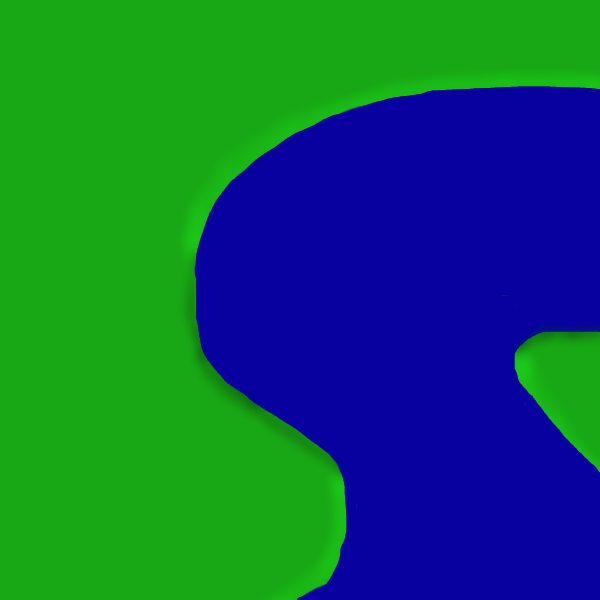
Now once u have clicked that, using the sliding bar that is under Blur, modify the blur until it looks good (i use about 12.5%) Now repeat that for each of the lightened/darkened areas, and if u did it right, it should look something like this:
hope thats not to confusing
Re: Q&A: Map Making TTT (Tips, Tricks & Tutorials)
Posted: Thu May 08, 2008 10:43 am
by bryguy
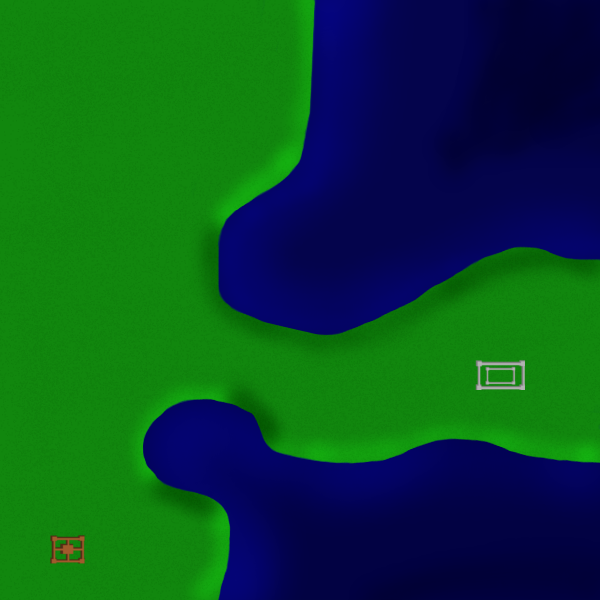
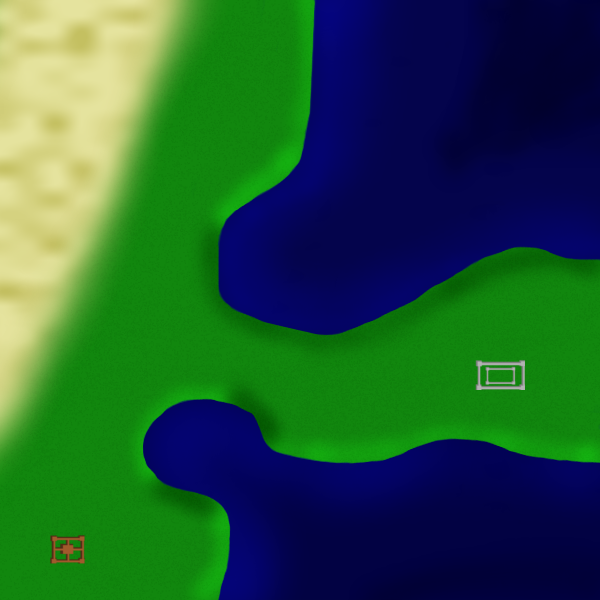
OK same landscaping thing as before, but in the GIMP this time
OK open GIMP
Create a new image, im using 600x600 for this one
Click the Paintbrush tool, choose a nice color (green again this time) and fill the whole picture with it (or if your lazy just use the Bucket Fill tool)
Now create a new layer, and on this layer, draw some water, i suggest using a large brush to get the basic area, and then zooming in to 400% or more and using a smaller brush and smoothing it out
Once thats done, choose your light source (lower right corner again here)
Now create a layer BELOW the water layer, but above the grass layer
Now choose wether your gonna start with the areas getting hit by light, or in the shadows.
Once you've chosen, if u chose the shadowed area, then grab the Airbrush tool and set the color on it to black or dark green. Then select a Circle Fuzzy Airbrush and change the pressure to 10, and the rate to 88. Now start coloring along the shore parts that are facing AWAY from your light source.
Once done, if u chose your grass color to be green, then keep the same airbrush, but change the color to light green. And then do the same thing that u did for the shadowed areas, but do it to the areas facing TOWARDS the light source.
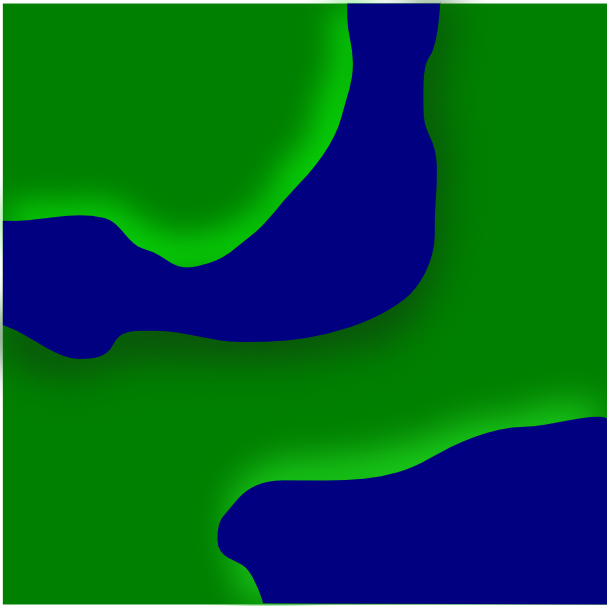
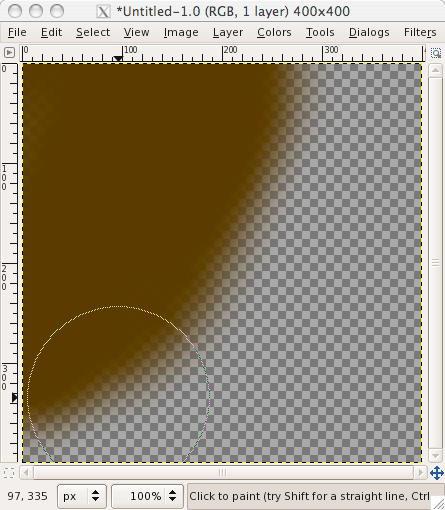
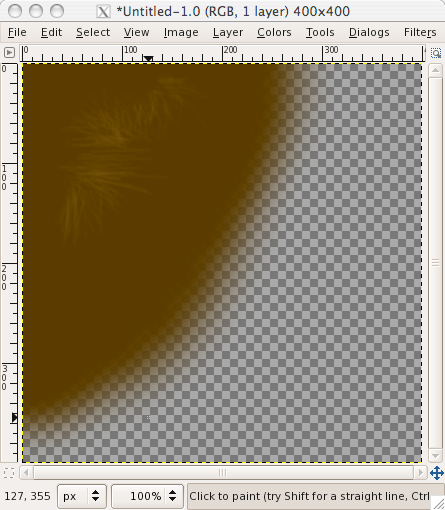
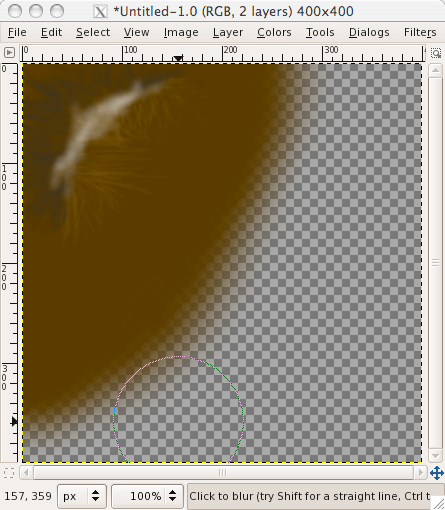
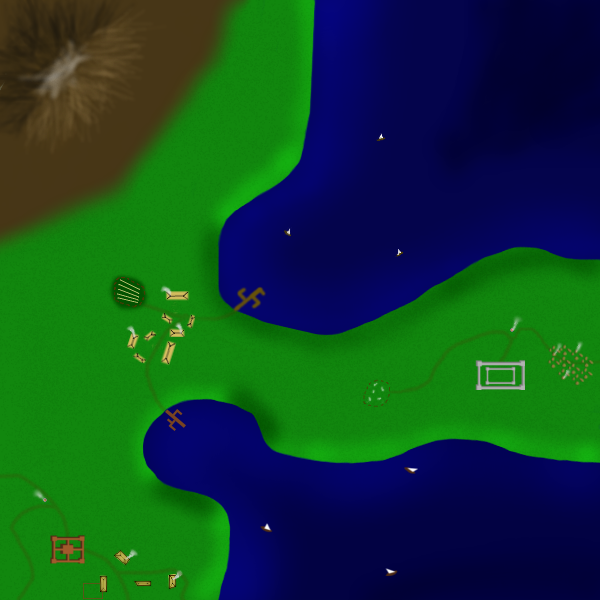
Now if u did it right, it should look something like this:
Remember, i spent like 5 minutes drawing this, so if u work at it longer u could get better looking results
Also, for airbrush sizes, i suggest using:
Circle Fuzzy (19)
and on the scale bar, move it up to 2.21
Hope this helps
Re: Q&A: Map Making TTT (Tips, Tricks & Tutorials)
Posted: Fri May 09, 2008 3:25 pm
by bryguy
ok, with some toying and messing around, i have figured out....
How to make a O.K. looking fantasy world/map using both GIMP & Inkscape
Note: You will want to save a bit, cause for some reason (at least for me) every once in a while X-11 will crash, taking all your unsaved work with it. And save it as a .xcf, or .psd Note 2: Sometimes X-11 is called XQuartz Note 3: You must have Inkscape and GIMP for this
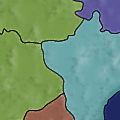
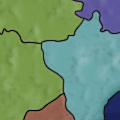
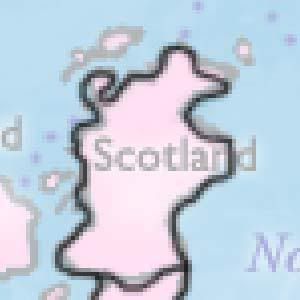
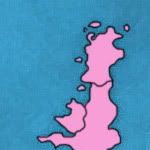
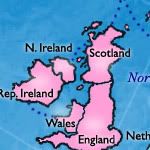
MrBenn wrote:I want to redraw the territory borders, as I want them to look fresh and crisp. At the moment I think they look a bit jaggedy and distorted (as well as inaccurate in 1 or 2 places like N Ireland).... I think this will be a major major task, as my couple of attempts at redoing the border have taken ages, and not been overly successful... Any suggestions on how to do this quickly, easily and efficiently would be warmly received.
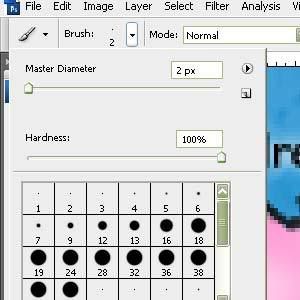
I like to use a solid black 2-pixel brush with a hardness of 100% (Opacity 100% & Flow 100%). This gives a good well defined smooth border. I will sometimes outline the entire bonus region in a 3 or 4 pixel brush also, just to keep it separated even more. Zoom in close on your original map and trace the borders. Yes it will take a while, but most likely not as long as you think. How accurate you keep it is up to you.



 now take this tool (don't know name in English)